Build your page
Blocks
The 15 building blocks of a page and when to use each one.
Add, reorder and hide
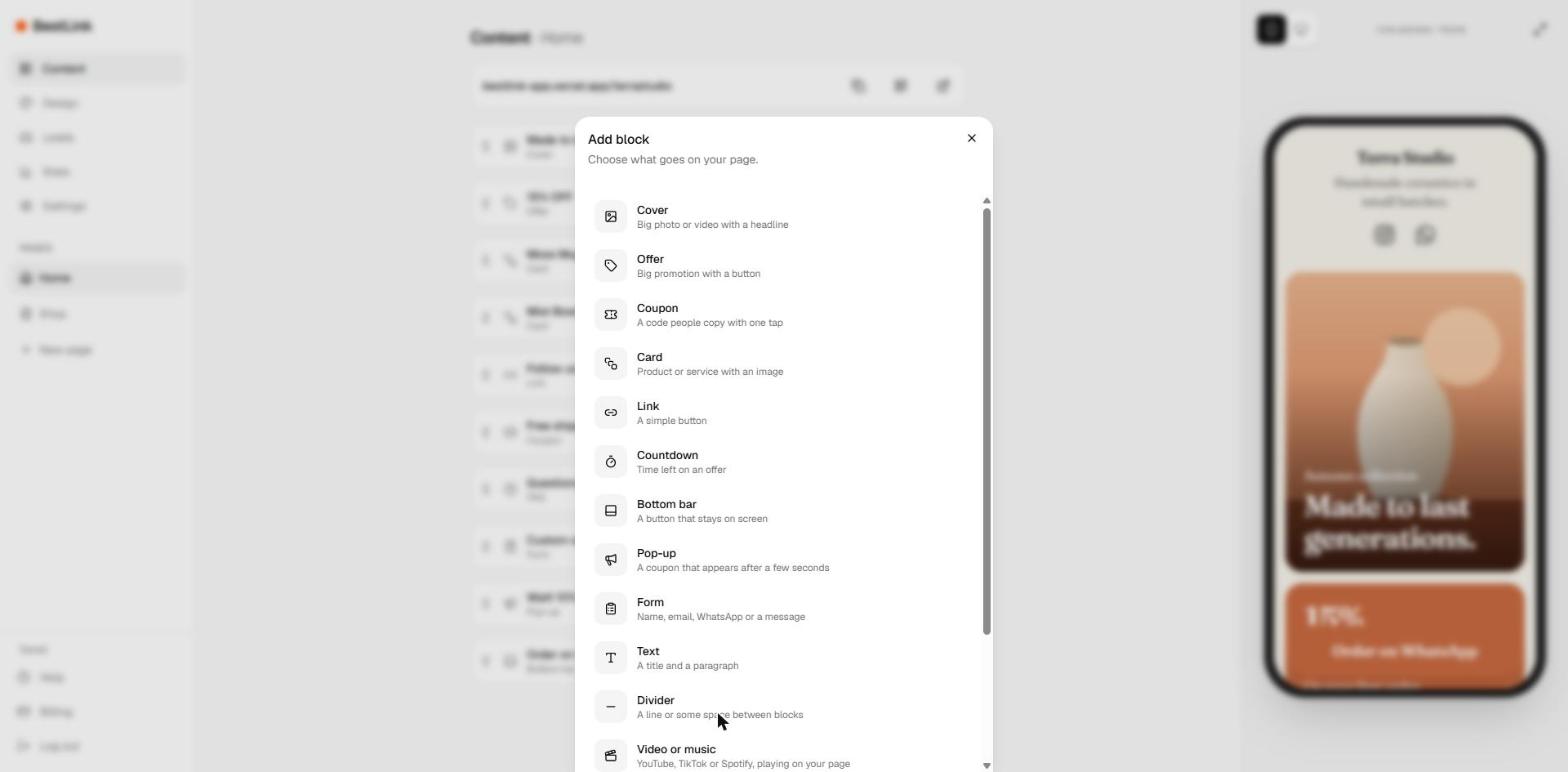
- In Content, tap Add block under the list and pick a type.
- Tap a block to open its fields. The preview changes as you type.
- Reorder by dragging the handle on the left (it works with touch too) or with the arrows.
- The eye hides a block without deleting it. Delete block is at the bottom of each block.
Blocks that sell
- Cover: a big photo or video with your headline. Add more photos to turn it into a carousel of up to 6.
- Offer: your main deal in large type, like 15% OFF, with a button that goes straight to it.
- Coupon: a discount code visitors copy with one tap, with an optional link to your shop.
- Product card: photo, name and price. Half width puts two side by side; full width puts the photo beside the text.
- Countdown: a live timer to the end of a sale or launch. It disappears on its own when time runs out.
Blocks that guide
- Link: the classic button, with an optional icon, highlight animation and color. See Link buttons.
- Bottom bar: a button that stays at the bottom of the screen while visitors scroll, like Order on WhatsApp. One per page.
- Pop-up: shows up after 5 or 15 seconds or halfway down the page, once per visitor. It can ask for an email or WhatsApp before revealing a code. One per page.
- Text: a title and a paragraph, aligned left or centered.
- Divider: a line with an optional label in the middle, three dots, or empty space.
Blocks that build trust
- Video or music: paste a YouTube, TikTok or Spotify link and it plays right on your page. Links from other sites are not accepted, to keep your visitors safe.
- Gallery: up to 9 photos in 2 or 3 columns.
- FAQ: up to 12 questions with answers that open on tap.
- Testimonials: up to 8 quotes from customers, with a name and an optional photo.
- Form: asks for name, email, WhatsApp and a message. Responses arrive in Leads.
Schedule a block
Every block has Schedule (optional): choose when it starts showing and when it stops. Set up a launch or a weekend sale once and it runs on its own, even while you sleep.